





With the fiscal year-end approaching, many companies face the challenge of closing their financial year. We are taking this opportunity to refresh the essential steps that need to be taken to successfully navigate this process. It is important to realize that no further bookings will be possible for the relevant financial year after the completion of this closing process. Therefore, it is strongly recommended to prepare a trial and balance sheet prior to this phase and to carefully check the results. The closing process consists of 3 steps:
Step 1: Closing the accounting periods
To begin, we're looking for the page related to the booking periods:

On this page, you will find the “close year” function:
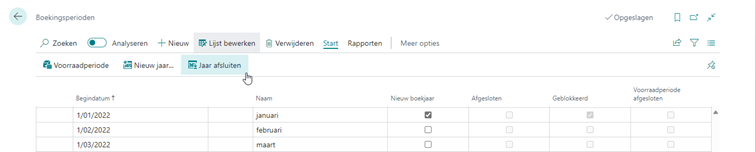
This function fully closes the desired period. You will not be able to open it again afterward, nor can you remove the checkmark for “closed” or “blocked.”.
Please note: A fiscal year cannot be closed until a new fiscal year has been created.
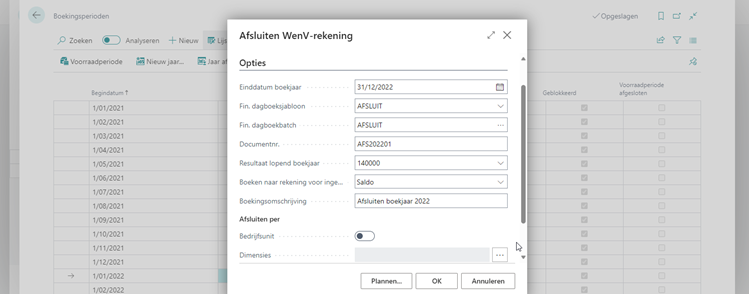
After the accounting periods have been closed, the result of the fiscal year can be processed. For this, search for the “Close P&L Account” tool in Business Central.
With this task, the profit or loss for the year is transferred to a balance sheet account, and the items on the income statements are closed.

In the action menu of this task, you will complete and run the parameters:
Step 3: Book the year-end adjustment entry
After the task is performed and the selected journal is opened, you will see suggested entries. Here you can complete the booking of year-end transactions.
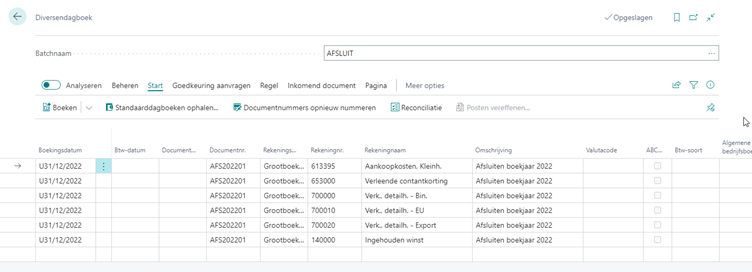
If the booking is successful, the booked items are removed from the journal. Upon completion of the booking, an entry is posted to each income statement account, bringing the balance to zero and transferring the net income to the selected balance sheet account from step 2.
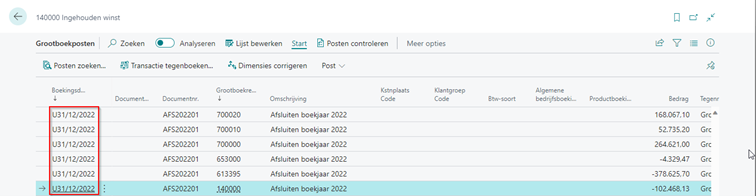
You can recognize the postings created with this booking in the general ledger entries by the ‘U’ (for ultimate) that appears before the date:
Do you have any further questions on this topic or are you interested in implementing Business Central for your company? Please do not hesitate to contact us at sales@scapta.com. We are ready to assist you!