




If the government implements a change in a VAT rate or if you need a VAT rate that falls outside the standard options, it is possible to add this manually in Microsoft Dynamics 365 Business Central. Scaptaan Riet is ready to guide you through the steps.
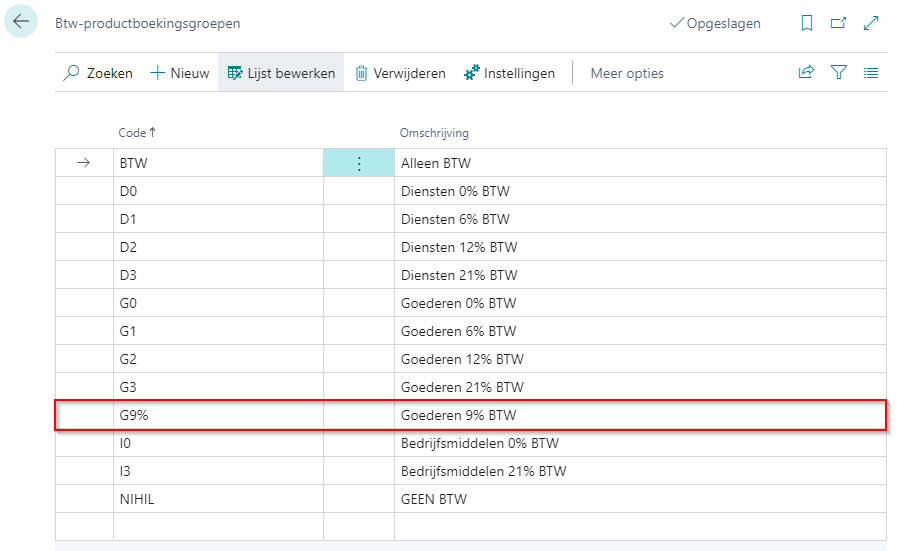
Step 1: Set up VAT product posting group
A VAT product posting group for the VAT rate needs to be created in Product booking groups.
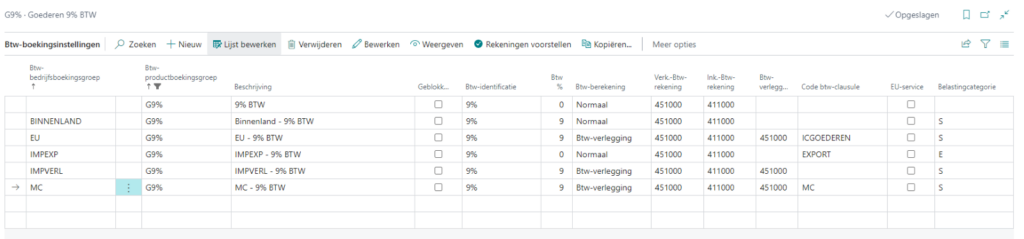
Step 2: Combine VAT posting groups in VAT posting settings
In Business Central, VAT amounts on sales and purchases are calculated based on Booking settings, these combinations are of tax business booking groups and tax product booking groups. For each combination, you need to specify the tax rate, tax calculation type, and general ledger accounts for posting tax on sales, purchases, and tax deferral.
Step 3: Assign VAT posting groups to general ledger accounts, items, and resources
In the chart of accounts, select the item or resource to which the correct tax product posting group is assigned. This will determine how tax is calculated and posted.
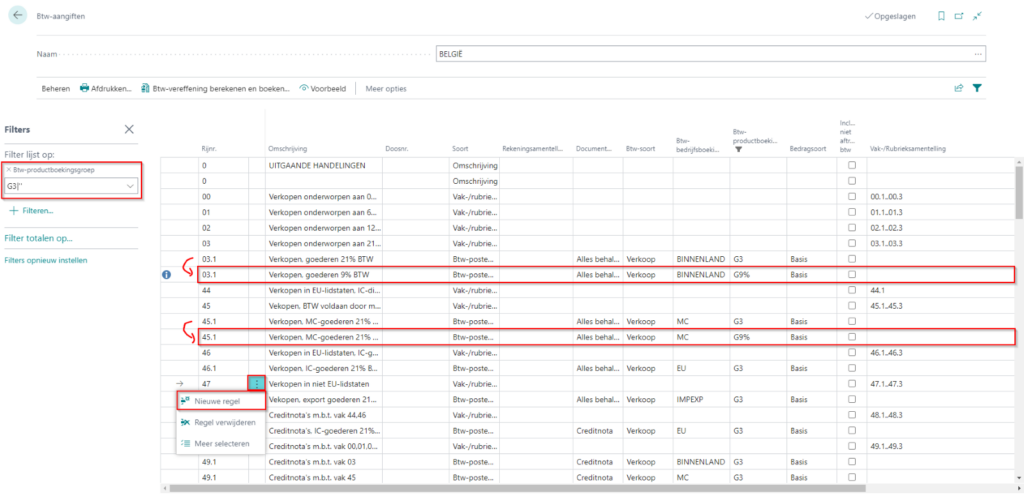
Step 4: Set up VAT return
In BTW returns Additional rules need to be set up for the new VAT posting group so that the new VAT rate is included in your VAT return. To easily see which rules need to be added, you can filter on a similar VAT posting group and insert similar rules for the new VAT rate. If you copy the row numbers, nothing needs to be adjusted to the Box/Line count.
author: Riet Mondelaers
Do you have any further questions on this topic or are you interested in implementing Business Central in your company? Don't hesitate to contact us using the form below. We are ready to help you!